Class11-Understanding Components of Computer
Class 11 Information Technology (802)
Unit 1 – Computer Organisation
Computer Components, I/O Devices, Storage Devices and Memory Units
Learning Objectives
After studying this topic, students will be able to:
Identify various components of a computer.
Understand the functions of different computer components.
Explain the purpose and use of Input and Output (I/O) devices.
Identify different types of storage devices.
Differentiate between primary and secondary storage.
Understand different memory units used in computers.
Convert between common units of digital storage.
Compare different storage devices based on capacity, speed and portability.
Components of a Computer
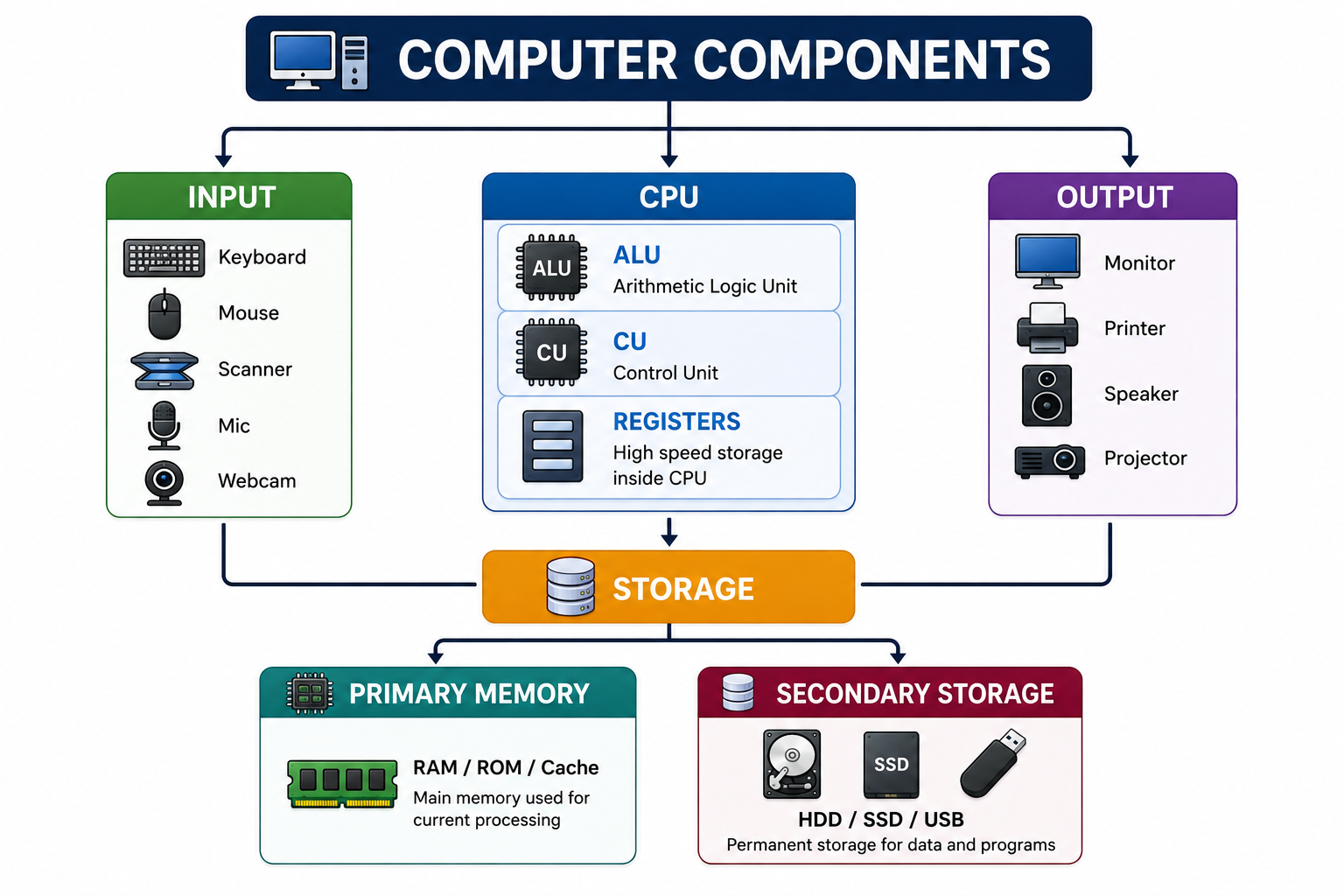
A computer system is made up of several hardware components that work together to accept data, process it, store it and produce useful information.
The major components are:
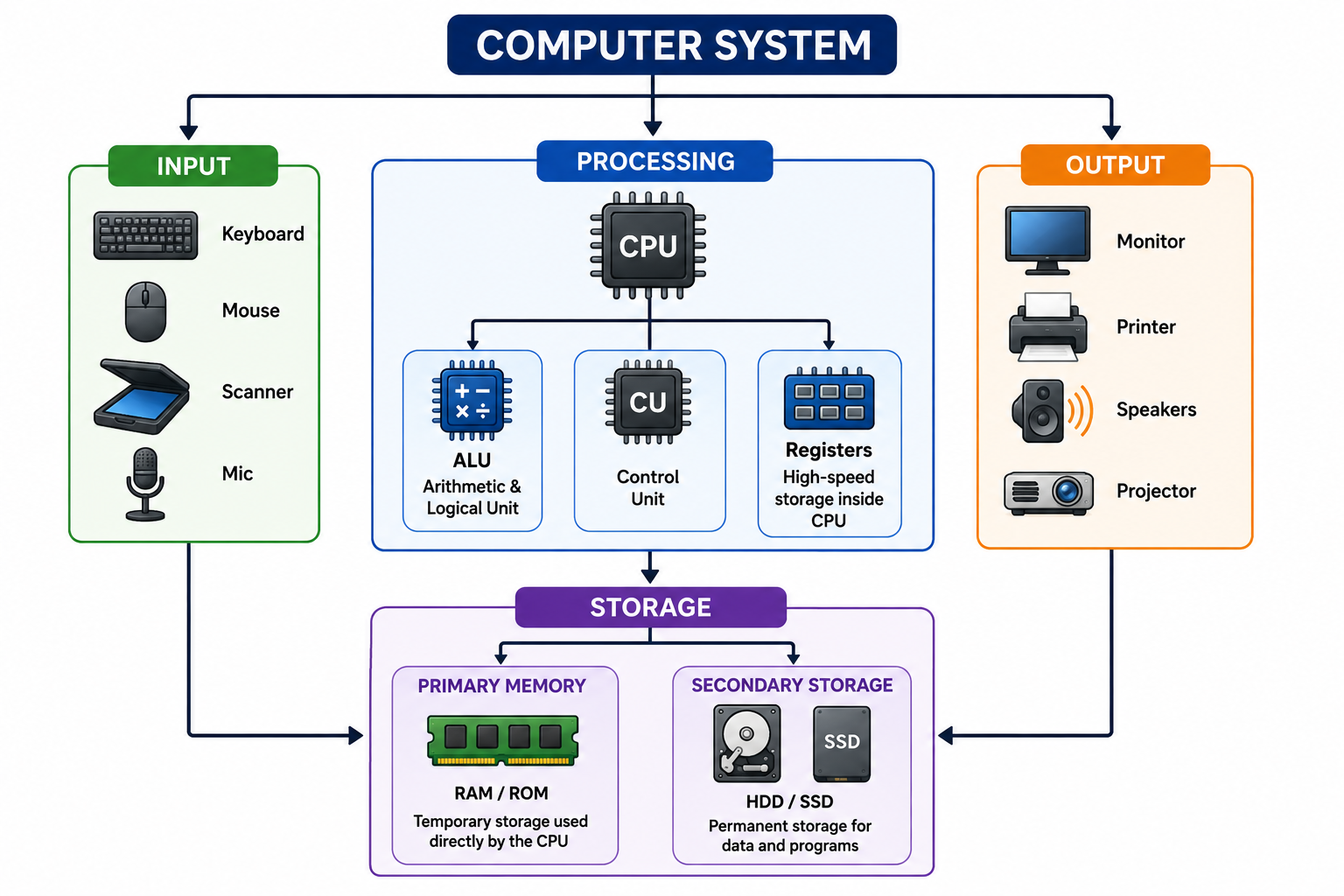
The major functional components are:
Input Devices
Central Processing Unit
Primary Memory
Secondary Storage
Output Devices
1. Input Devices
An input device is a hardware device used to enter data and instructions into a computer.
Input devices convert information supplied by the user into a form that the computer can process.
Common Input Devices
1.1 Keyboard
A keyboard is one of the most common input devices.
It is used to enter:
Letters
Numbers
Symbols
Commands
Special characters
Main Keys on a Keyboard
Alphabet keys
Number keys
Function keys
Arrow keys
Control keys
Enter key
Spacebar
Backspace
Shift
Ctrl
Alt
Use: Typing documents, entering data and giving commands.
1.2. Mouse
A mouse is a pointing device used to control the pointer on the screen.
Common Mouse Operations
Click
Double-click
Right-click
Drag and drop
Scroll
Use: Selecting objects, opening files, navigating applications and interacting with graphical interfaces.
1.3 Scanner
A scanner converts physical documents or photographs into digital form.
Example:
A printed photograph → Scanner → Digital image
Uses:
Scanning documents
Digitising photographs
Creating electronic records
1.4 Microphone
A microphone is an input device used to capture sound.
Uses:
Voice recording
Video conferencing
Online classes
Voice commands
Audio recording
1.5 Webcam
A webcam captures images and video and sends them to the computer.
Uses:
Video calls
Online classes
Video recording
Web conferencing
1.6 Touchscreen
A touchscreen allows users to interact directly with a display by touching it.
A touchscreen can act as both an input and output device.
Examples:
Smartphones
Tablets
ATMs
Information kiosks
1.7 Barcode Reader
A barcode reader scans barcodes and sends the information to a computer.
Uses:
Supermarkets
Inventory systems
Libraries
Warehouses
1.8 QR Code Reader
A QR code reader or camera can scan QR codes containing information such as:
Website links
Payment information
Contact details
Product information
1.9 Joystick
A joystick is a pointing/input device commonly used for controlling games and simulations.
1.10 Biometric Devices
Biometric devices identify people using physical or behavioural characteristics.
Examples include:
Fingerprint scanner
Iris scanner
Face recognition camera
Uses:
Attendance systems
Security
Authentication
Access control
2. Output Devices
An output device presents processed information from the computer to the user.
Common Output Devices
Monitor
Printer
Speakers
Headphones
Projector
Plotter
2.1. Monitor
A monitor is a display device that shows text, images, videos and other graphical information.
Common Display Technologies
LCD
LED
OLED
Important Characteristics
Screen size
Resolution
Refresh rate
Display quality
2.2. Printer
A printer produces information on paper or another physical medium.
This physical output is called a hard copy.
Printers can broadly be classified as:
Impact Printers
These printers produce output by physically striking an ink ribbon or similar mechanism.
Example:
Dot Matrix Printer
Non-Impact Printers
These printers produce output without physically striking the paper.
Examples:
Inkjet Printer
Laser Printer
2.3. Speakers
Speakers convert electrical/digital audio signals into sound.
Uses:
Music
Videos
Online classes
Games
Notifications
2.4. Headphones
Headphones provide audio output directly to the user.
They are useful when private listening is required.
2.5. Projector
A projector displays computer output on a large screen or wall.
Uses:
Classroom teaching
Presentations
Meetings
Training sessions
Home entertainment
2.6. Plotter
A plotter is an output device designed to produce large and precise drawings.
It has traditionally been used for:
Engineering drawings
Architectural plans
Maps
Large technical graphics
Input vs Output Devices
Input Device | Function | Output Device | Function |
|---|---|---|---|
Keyboard | Enters text/data | Monitor | Displays information |
Mouse | Controls pointer | Printer | Produces hard copy |
Scanner | Digitises documents | Speakers | Produces sound |
Microphone | Captures sound | Projector | Displays large images |
Webcam | Captures video | Headphones | Produces audio |
Barcode Reader | Reads barcodes | Plotter | Produces technical drawings |
Remember
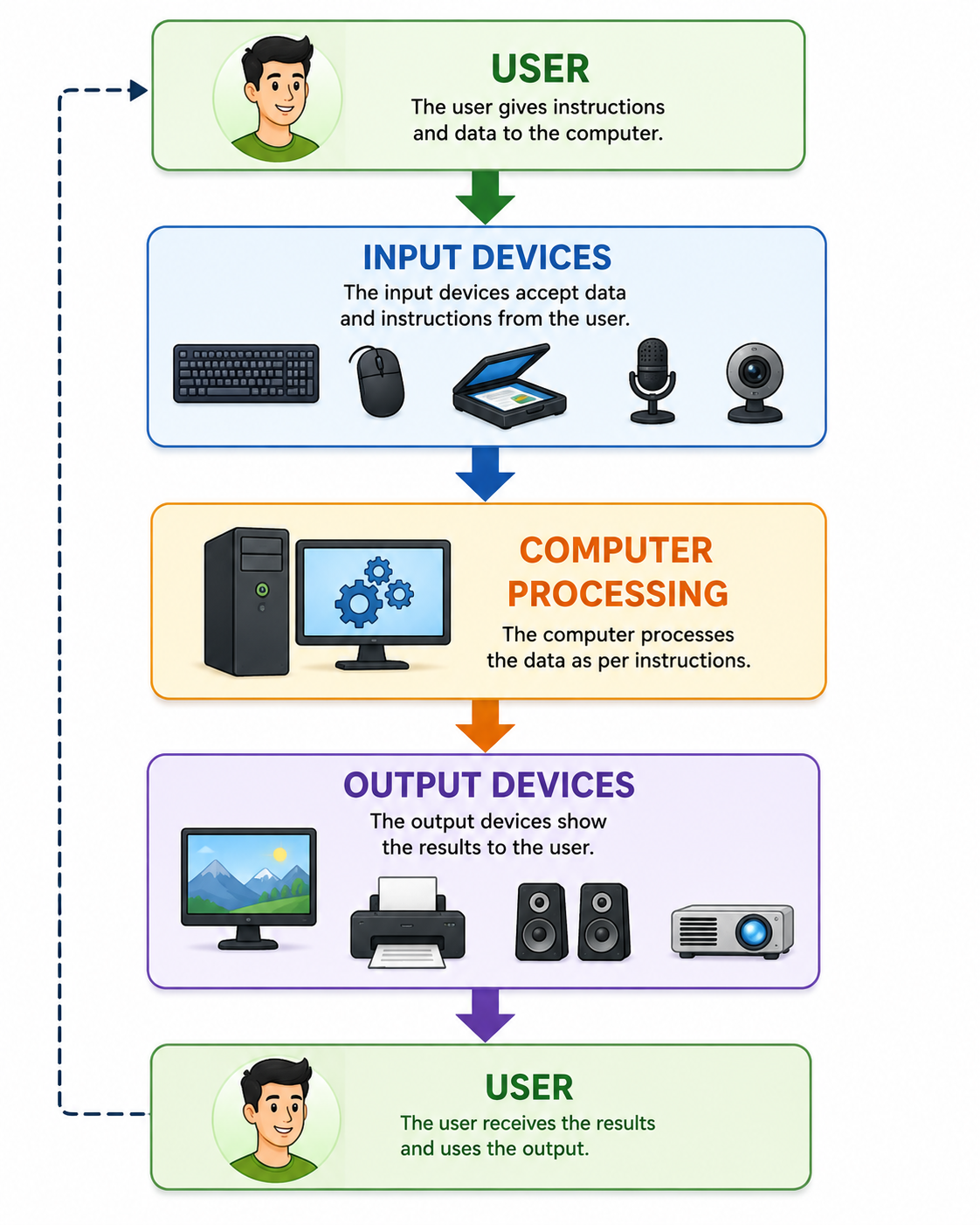
Input → Computer → Output
I/O Devices
I/O stands for Input/Output.
I/O devices allow a computer to communicate with the outside world.
Some devices can perform both input and output functions.
Examples
Device | Input | Output |
Touchscreen | ✓ | ✓ |
Multifunction Printer | ✓ | ✓ |
Network Card | ✓ | ✓ |
Storage Device | ✓ | ✓ |
A touchscreen, for example, displays information to the user and also accepts touch commands.
Storage Devices
Storage devices are hardware components used to save digital data.
Data may include:
Documents
Images
Videos
Music
Programs
Databases
Backups
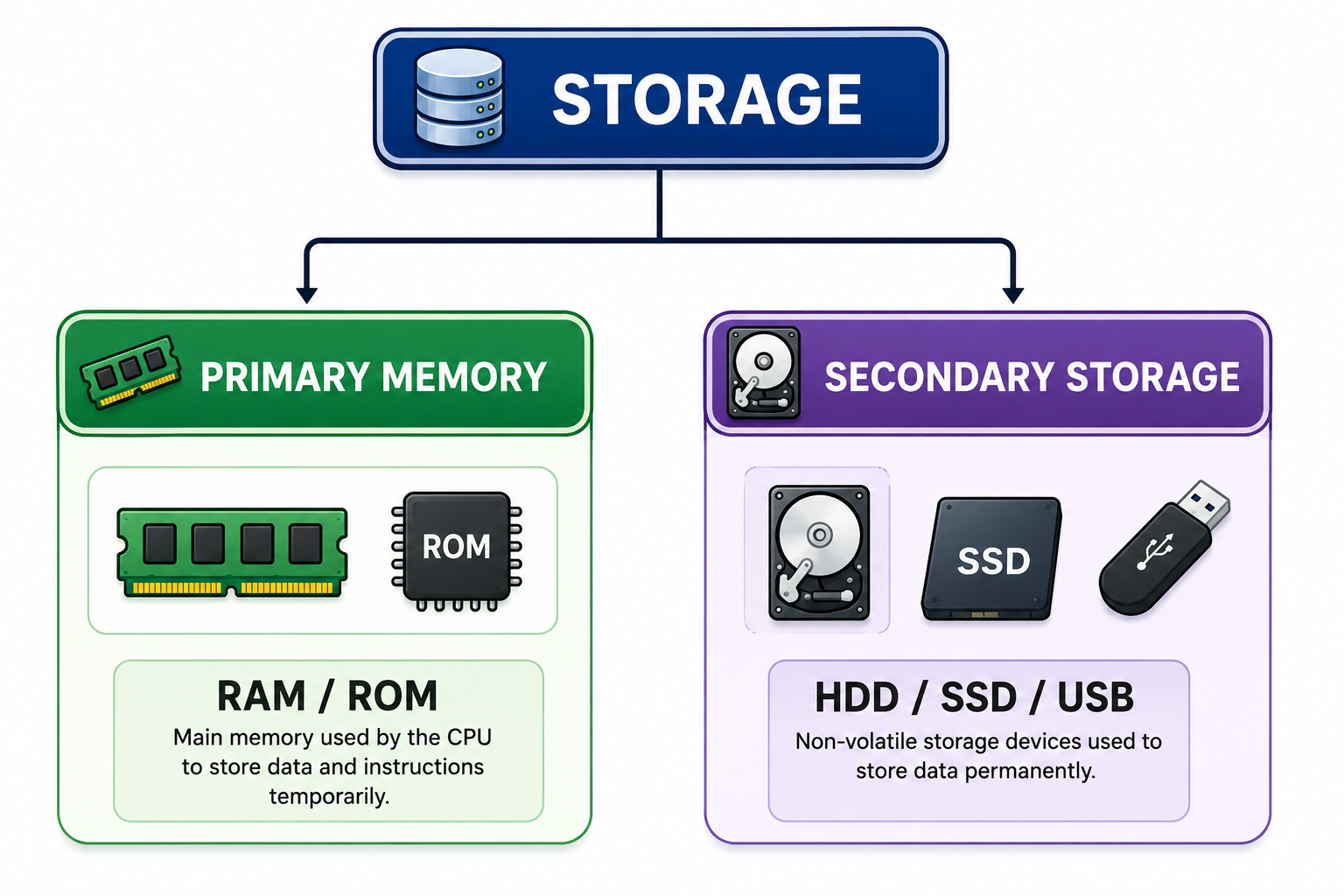
Storage is broadly divided into:
1. Primary Memory
Primary memory is memory that can be accessed directly by the CPU for active processing.
Important types include:
RAM
ROM
Cache memory
Primary memory is generally faster than secondary storage.
1.1. RAM
RAM = Random Access Memory
RAM stores programs and data that are currently being used.
Characteristics
Fast
Directly accessible by the CPU
Generally volatile
Used for temporary working data
Example
When you open a web browser, the operating system loads the required program and data into RAM.
If the computer is switched off, information stored only in RAM is normally lost.
1.2. ROM
ROM = Read Only Memory
ROM is non-volatile memory that retains its contents when power is removed.
It is commonly used for storing firmware and other instructions needed by a computer or electronic device.
Characteristics
Non-volatile
Retains information without power
Used for firmware
1.3. Cache Memory
Cache is a very fast memory located close to or within the CPU.
It stores frequently accessed data and instructions to reduce the time required for the CPU to obtain them.
Memory Speed Concept
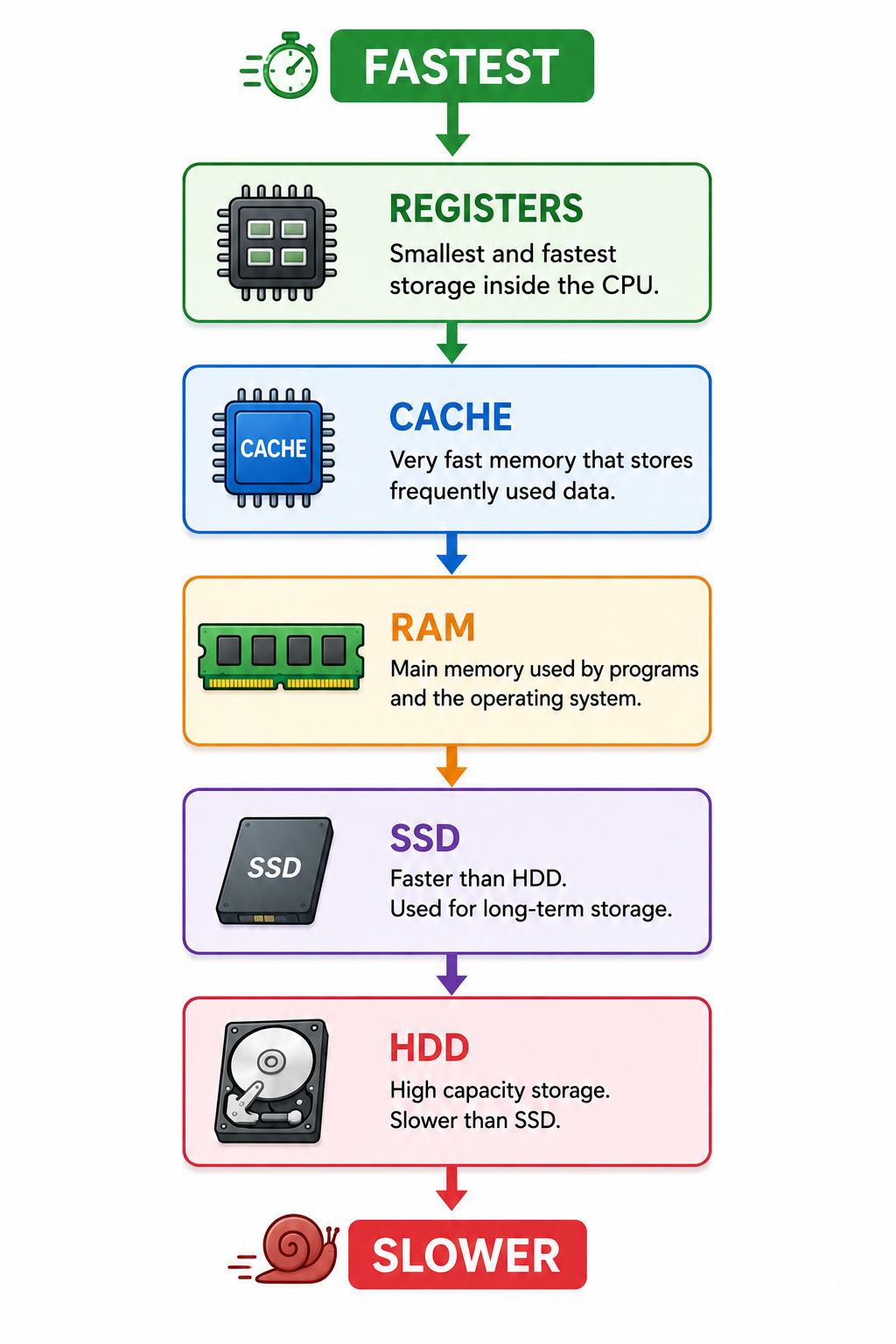
The exact speed and hierarchy depend on the computer system, but the general principle is that smaller, CPU-near memories are faster.
2. Secondary Storage
Secondary storage is used for long-term storage of data and programs.
Unlike RAM, secondary storage is generally non-volatile.
Examples:
Hard Disk Drive
Solid State Drive
USB Flash Drive
Memory Card
Optical Disc
2.1. Hard Disk Drive (HDD)
A Hard Disk Drive stores data using magnetic storage on rotating disks called platters.
Advantages
Large storage capacities
Relatively low cost per GB
Suitable for storing large amounts of data
Disadvantages
Mechanical moving parts
Generally slower than SSDs
More sensitive to physical shock
Uses
Desktop computers
Laptops
Servers
Backup storage
2.2. Solid State Drive (SSD)
An SSD stores data using flash memory and has no traditional moving mechanical parts.
Advantages
Fast
Quiet
Low power consumption
More resistant to physical shock than HDDs
Faster boot and application loading
Disadvantages
Usually costs more per GB than HDDs
Flash memory has a finite write endurance, although modern SSDs are designed for substantial use
2.3. HDD vs SSD
Feature | HDD | SSD |
Technology | Magnetic | Flash memory |
Moving parts | Yes | No traditional moving parts |
Speed | Generally lower | Generally higher |
Noise | May produce mechanical noise | Silent |
Shock resistance | Lower | Generally higher |
Cost per GB | Usually lower | Usually higher |
Power consumption | Usually higher | Usually lower |
Common use | Bulk storage | Fast system/application storage |
2.4. USB Flash Drive
A USB flash drive is a portable storage device that uses flash memory.
Uses
Transferring files
Carrying documents
Backing up data
Installing software
Sharing files
It is commonly connected through a USB port.
2.5. Memory Card
Memory cards are small removable flash storage devices.
Examples include:
SD Card
microSD Card
Uses
Smartphones
Digital cameras
Tablets
Action cameras
Embedded devices
2.6. Optical Discs
Optical discs use laser technology to read and/or write information.
Examples:
CD
DVD
Blu-ray Disc
Uses
Media distribution
Software distribution
Data archiving
Optical discs are less commonly used for everyday storage today than USB drives, SSDs and cloud storage.
2.7. Cloud Storage
Cloud storage allows users to store data on remote servers accessed through a network, usually the Internet.
Examples include services that provide online file storage and synchronisation.
Advantages
Accessible from multiple devices
Useful for backup and synchronisation
Easy file sharing
No need to carry physical storage
Limitations
Internet access may be required
Storage may involve subscription costs
Security and privacy depend on the service and account settings
Primary vs Secondary Storage
Feature | Primary Memory | Secondary Storage |
Main purpose | Active processing | Long-term storage |
CPU access | Directly accessible | Accessed through I/O/storage system |
Speed | Generally faster | Generally slower |
Capacity | Generally smaller | Generally larger |
Cost per GB | Generally higher | Generally lower |
Examples | RAM, cache | SSD, HDD, USB drive |
Volatility | Depends on type | Generally non-volatile |
Memory Units
Computers represent and store information digitally.
The smallest commonly used unit of digital information is the bit.
Bit
A bit stands for binary digit.
It can have one of two values:
0 or 1
Byte
A byte consists of 8 bits.
1 Byte = 8 bitsA byte is commonly used as a basic unit for measuring storage capacity.
27. Common Storage Units
The commonly used units are:
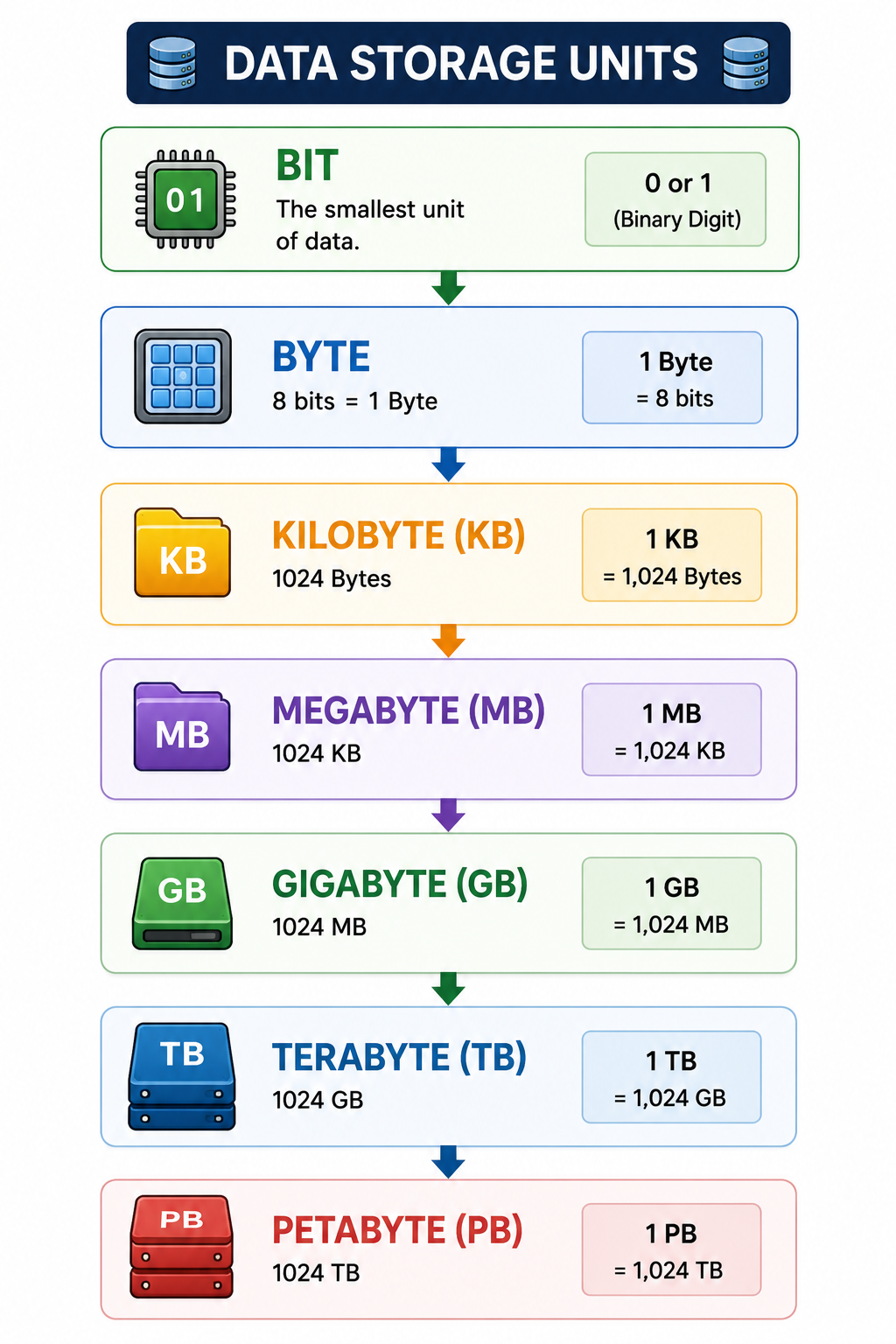
Memory Unit Conversion
Example 1
Convert 4 KB into bytes.
Using:
1 KB = 1024 bytes
Therefore:
4 × 1024 = 4096 bytes
Answer:
4 KB = 4096 bytes
Example 2
Convert 2 MB into KB.
1 MB = 1024 KB
Therefore:
2 × 1024 = 2048 KB
Answer:
2 MB = 2048 KB
Example 3
Convert 3 GB into MB.
1 GB = 1024 MB
Therefore:
3 × 1024 = 3072 MB
Answer:
3 GB = 3072 MB
Bit and Byte – Difference
Bit | Byte |
Smallest binary unit | Group of 8 bits |
Represented as bit or b | Represented as B |
Can be 0 or 1 | Can represent 256 possible combinations |
Used in data transmission rates | Commonly used for storage capacity |
Important
Do not confuse:
b = bit
B = Byte
For example:
100 Mbps means 100 megabits per second.
100 MB means 100 megabytes.
30. Storage Capacity Examples
Unit | Approximate Relationship |
1 Byte | 8 bits |
1 KB | 1,024 Bytes* |
1 MB | 1,024 KB* |
1 GB | 1,024 MB* |
1 TB | 1,024 GB* |
1 PB | 1,024 TB* |
*Binary convention commonly used in school-level calculations.
Memory Hierarchy
Memory hierarchy represents different levels of computer storage based broadly on speed, cost and capacity.
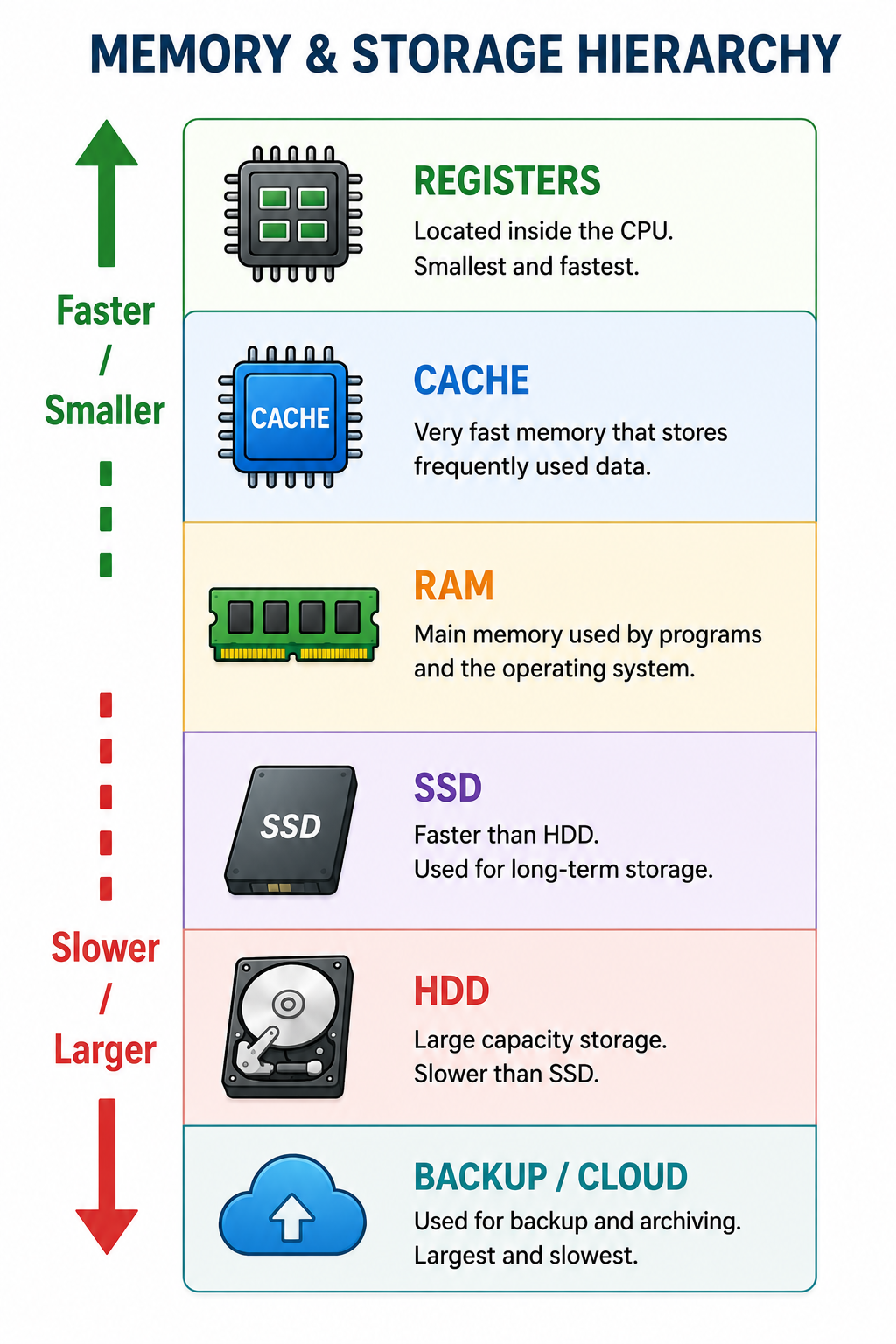
Generally:
Higher levels are faster and more expensive per unit of storage.
Lower levels provide greater capacity at lower cost per unit.
Volatile and Non-Volatile Memory
Volatile Memory
Volatile memory loses its stored contents when power is removed.
Example:
RAM
Non-Volatile Memory
Non-volatile storage retains data even when power is removed.
Examples:
ROM
SSD
HDD
USB Flash Drive
Memory Card
Internal and External Storage
Internal Storage
Storage installed inside a computer.
Examples:
Internal SSD
Internal HDD
External Storage
Storage that can be connected and disconnected from the computer.
Examples:
USB Flash Drive
External HDD
External SSD
Memory Card
Quick Comparison of Storage Devices
Device | Technology | Portable | Main Use |
HDD | Magnetic | Sometimes | Large-capacity storage |
SSD | Flash | Sometimes | Fast storage |
USB Drive | Flash | Yes | File transfer |
Memory Card | Flash | Yes | Phones/cameras |
CD/DVD | Optical | Yes | Media/data distribution |
Cloud Storage | Remote servers | Yes* | Backup/synchronisation |
*Requires network/Internet access where applicable.
How to Choose a Storage Device?
The appropriate storage device depends on the requirement.
For fast computer performance
SSD
For large amounts of relatively inexpensive storage
HDD
For carrying small amounts of data
USB Flash Drive
For smartphones and cameras
Memory Card
For accessing files from multiple locations
Cloud Storage
For backup
A combination of local and cloud/off-site backup can be useful.
Identification Activity
Identify the following components:
Description | Component |
Used for typing | Keyboard |
Used for pointing and selecting | Mouse |
Captures sound | Microphone |
Captures video | Webcam |
Displays information | Monitor |
Produces paper output | Printer |
Performs arithmetic and logical operations | ALU |
Controls computer operations | Control Unit |
Temporary working memory | RAM |
Long-term magnetic storage | HDD |
Fast flash-based storage | SSD |
Portable flash storage | USB Drive |
Small storage used in phones/cameras | Memory Card |
Important Exam Questions
Very Short Answer Questions
Q1. What is an input device?
An input device is a hardware device used to enter data and instructions into a computer.
Q2. Give two examples of output devices.
Monitor and printer.
Q3. What is RAM?
RAM is Random Access Memory. It is volatile primary memory used to store data and programs currently being processed.
Q4. What is SSD?
SSD stands for Solid State Drive. It is a storage device that uses flash memory to store data.
Q5. What is the smallest commonly used unit of digital information?
Bit.
Q6. How many bits are there in one byte?
8 bits.
Q7. Name two secondary storage devices.
HDD and SSD.
Q8. What is cloud storage?
Cloud storage is a service in which data is stored on remote servers and accessed through a network.
Short Answer Questions
Q1. Differentiate between input and output devices.
Input devices are used to send data and instructions to the computer, whereas output devices are used to present processed information to the user.
Examples of input devices include keyboard, mouse and scanner.
Examples of output devices include monitor, printer and speakers.
Q2. Differentiate between RAM and ROM.
RAM | ROM |
Volatile | Non-volatile |
Temporary working memory | Stores persistent instructions/firmware |
Contents normally lost when power is removed | Contents retained without power |
Used for active programs/data | Commonly used for firmware |
Q3. Differentiate between HDD and SSD.
An HDD uses magnetic storage on rotating disks, whereas an SSD uses flash memory and has no traditional moving mechanical parts.
SSDs generally provide faster access and are more resistant to physical shock, while HDDs generally offer lower cost per GB.
Q4. Explain the difference between primary and secondary storage.
Primary memory is used directly during active processing and includes RAM and cache. Secondary storage is used for long-term storage and includes devices such as HDDs, SSDs and USB drives.
Long Answer Questions
Q1. Explain different types of I/O devices with examples.
Input devices allow users to provide data to the computer. Examples include keyboard, mouse, scanner, microphone, webcam and barcode reader.
Output devices present processed information to users. Examples include monitor, printer, speakers, headphones and projector.
Some devices, such as touchscreens and multifunction devices, can perform both input and output functions.
Q2. Explain different storage devices used in computers.
Common storage devices include HDDs, SSDs, USB flash drives, memory cards and optical discs.
HDDs use magnetic storage and are useful for large-capacity storage. SSDs use flash memory and generally provide faster performance. USB drives and memory cards are portable flash storage devices. Optical discs use laser technology to read and write data.
Cloud storage provides another method of storing and accessing data remotely through a network.
Fill in the Blanks
________ is used to enter text into a computer.
Answer: Keyboard________ is used to display visual output.
Answer: Monitor________ stands for Random Access Memory.
Answer: RAM________ stands for Solid State Drive.
Answer: SSDOne byte contains ________ bits.
Answer: 8________ is a volatile memory.
Answer: RAMA ________ converts a paper document into a digital image.
Answer: ScannerA ________ is commonly used to produce hard-copy output.
Answer: Printer
True or False
A keyboard is an input device.
TrueA monitor is an input device only.
FalseRAM is normally volatile.
TrueSSDs use traditional rotating magnetic platters.
FalseA byte contains 8 bits.
TrueA touchscreen can provide both input and output.
TrueHDDs use magnetic storage.
TrueA printer is an output device.
True
Multiple Choice Questions
1. Which of the following is an input device?
A. Monitor
B. Printer
C. Keyboard
D. Speaker
Answer: C. Keyboard
2. Which component performs arithmetic and logical operations?
A. CU
B. ALU
C. RAM
D. ROM
Answer: B. ALU
3. Which memory is volatile?
A. ROM
B. RAM
C. SSD
D. HDD
Answer: B. RAM
4. Which storage device uses flash memory?
A. SSD
B. HDD
C. Magnetic tape
D. Mechanical diskette
Answer: A. SSD
5. One byte is equal to:
A. 2 bits
B. 4 bits
C. 8 bits
D. 16 bits
Answer: C. 8 bits
6. Which device is commonly used to produce hard-copy output?
A. Scanner
B. Printer
C. Mouse
D. Microphone
Answer: B. Printer
7. Which device can act as both an input and output device?
A. Keyboard
B. Touchscreen
C. Speaker
D. Mouse
Answer: B. Touchscreen
8. Which is generally faster?
A. HDD
B. SSD
C. Optical disc
D. Magnetic tape
Answer: B. SSD
43. Quick Revision Chart
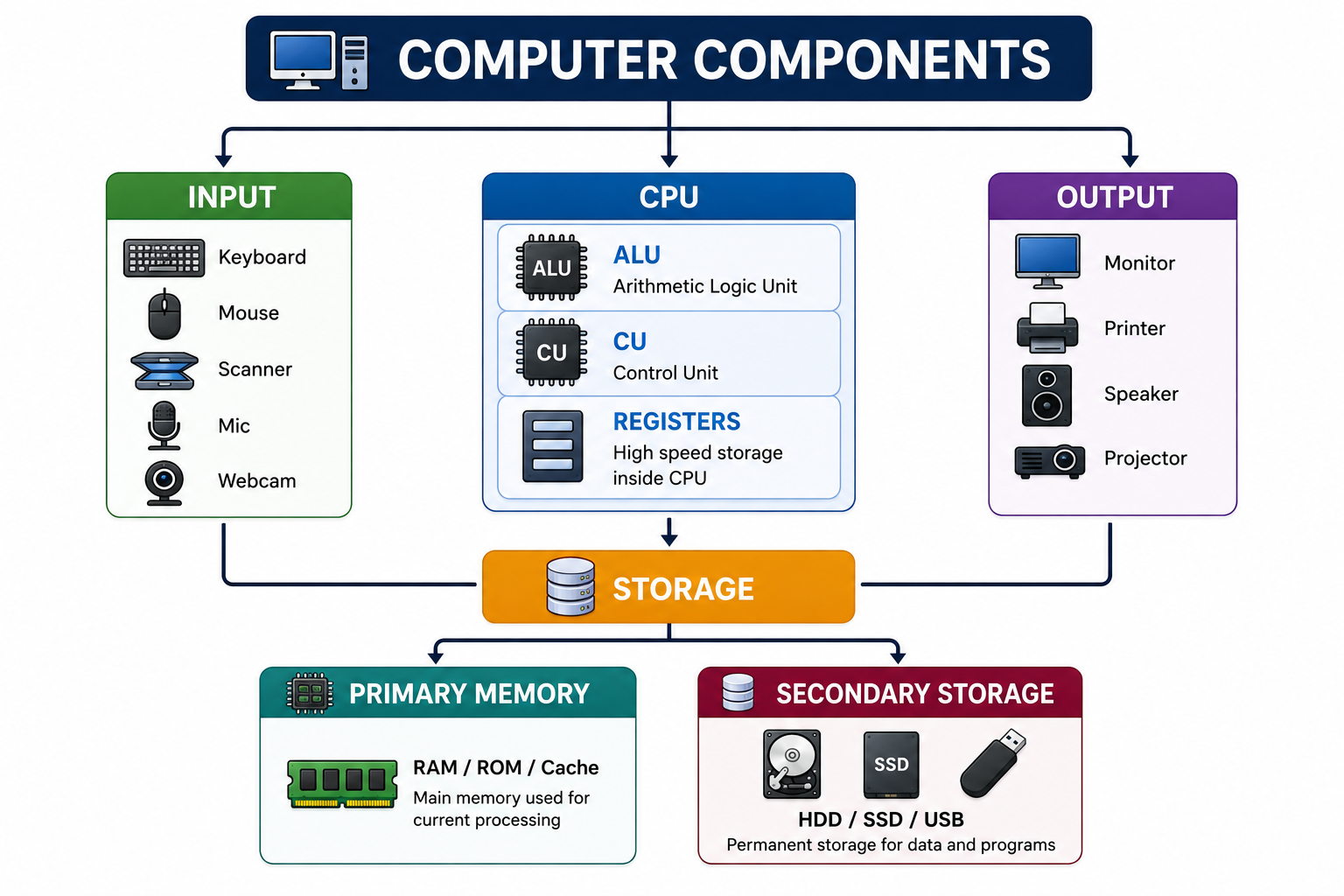
Key Points to Remember
Keyboard, mouse and scanner are common input devices.
Monitor, printer and speakers are common output devices.
Touchscreen can perform both input and output functions.
CPU performs processing and controls operations.
ALU performs arithmetic and logical operations.
RAM is volatile primary memory.
ROM is non-volatile memory.
Cache is very fast memory used to improve CPU access to frequently needed data.
HDD uses magnetic storage.
SSD uses flash memory.
USB drives and memory cards are portable flash storage devices.
Cloud storage stores data on remote servers accessible through a network.
1 Byte = 8 bits.
For school-level calculations, 1 KB = 1024 Bytes, 1 MB = 1024 KB, and so on, unless the question specifies another convention.
b = bit and B = Byte.
One-Minute Revision
Input
Keyboard → Mouse → Scanner → Microphone → Webcam
Output
Monitor → Printer → Speakers → Projector
Primary Memory
RAM → ROM → Cache
Secondary Storage
HDD → SSD → USB Drive → Memory Card → Optical Disc
Memory Units
Bit → Byte → KB → MB → GB → TB → PB
Remember
8 bits = 1 Byte
Input → Processing → Output
RAM = Volatile
ROM = Non-volatile
HDD = Magnetic
SSD = Flash
Touchscreen = Input + Output