How to Resize Photo to 20KB or 50KB for Exam Forms (2026)
Getting "file size too large" on your exam form? This guide shows how to resize and compress your photo and signature to 20KB or 50KB for free, in under a minute, with no app.
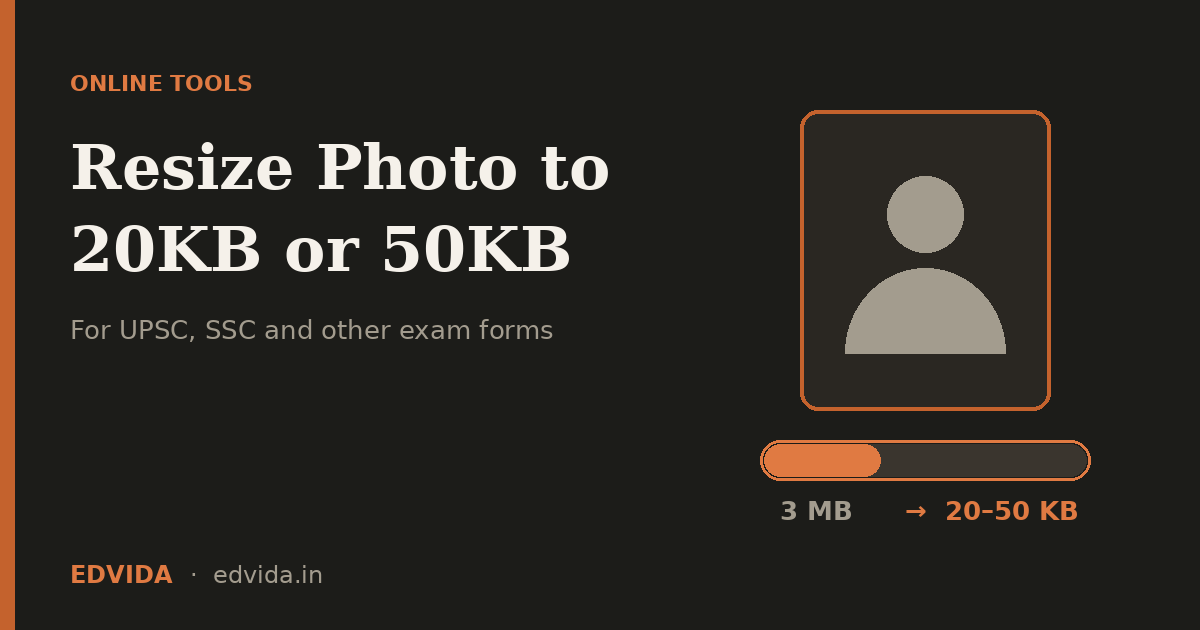
You have filled in the whole exam application, reached the last step, and the portal says: "Photo size must be between 20KB and 50KB." Your phone photo is 3 MB. This is one of the most common problems students face with UPSC, SSC, banking, railway and state-level exam forms, and it takes about a minute to fix.
Why Exam Portals Have Strict Photo Limits
Government portals receive lakhs of applications in a short window. To keep servers fast and storage manageable, they set tight limits on file size, dimensions and format. If your file does not match, the form rejects it, often with a vague error message.
Most portals check three things:
- File size: for example 20KB to 50KB for a photo, and a smaller range for a signature.
- Dimensions: width and height in pixels or centimetres.
- Format: usually JPG or JPEG, sometimes PNG.
Important: exact limits change between exams and between years. Always confirm the numbers in the official notification of your exam. Treat any figure on a third-party site, including this one, as a starting point.
Exam photo maker
Step-by-Step: Resize Your Photo to 20KB or 50KB
(Use a numbered list for these five steps. Link "EDVIDA Exam Photo Maker" to https://edvida.in/passport-photo-maker)
1. Open the EDVIDA Exam Photo Maker on your phone or computer. No login is needed.
2. Upload a clear, recent photo with a plain light background and your face centred.
3. Choose the preset that matches your form (UPSC, SSC, or a custom target such as 20KB or 50KB).
4. Check the preview. Your face should be fully visible and the image sharp.
5. Click convert, download the resized photo, and upload it to the exam portal.
How to Resize Your Signature
The signature field usually has a much smaller size limit than the photo. Sign with a dark pen on plain white paper, take a straight-on photo in good light, crop tightly around the signature, and resize it to the limit stated in your form. Do not upload the signature in the photo field, and do not upload the photo in the signature field. That swap is a common reason for rejection.
Tips for a Photo That Gets Accepted the First Time
- Start with a good original. Natural light, face straight to the camera, no shadows. A sharp original compresses far better than a blurry one.
- Use a plain background. White or light backgrounds are accepted by almost every exam and compress to smaller files.
- Never re-compress a compressed photo. Resizing the same image again and again destroys quality. Always go back to the original.
- Read the photo rules. Some forms require a recent photo, no cap or sunglasses, or a name and date strip. Check the notification.
- Keep a backup folder. Save your final photo and signature together so you can reuse them for the next form.
Common Mistakes That Cause Rejection
Most rejections are not about file size at all. They come from selfies with cluttered backgrounds, photos older than the allowed period, wrong dimensions, wrong file format, or a face that is cropped too tightly. Spend two extra minutes checking the preview before you upload, and you avoid the stress of correcting the form near the deadline.
Frequently Asked Questions
How do I convert a photo to 20KB?
Upload your image to an online photo resizer, choose the 20KB option, and download the compressed photo. The tool lowers the file size while keeping the face clear.
What is the photo size for UPSC and SSC forms?
Both exams specify dimensions and a maximum file size, and these can change each year. Use the matching preset for quick setup, then verify against the latest official notification.
Will compressing a photo to 50KB make it blurry?
Not if you start with a sharp, well-lit original. A 50KB photo at standard passport dimensions still looks clear on an application form.
Can I resize my signature the same way?
Yes. Crop the signature tightly, then resize it to the smaller limit mentioned in your form. Keep the background plain white.
Is it safe to upload my photo to an online tool?
Choose a tool that processes images privately and does not store them. Avoid sites that ask you to sign up or share personal details just to resize a photo.
Final Thoughts
A rejected photo should never be the reason you miss a deadline. Keep your original photo handy, check the notification for the exact specifications, and use a free resizer to finish in seconds.
Resize Your Exam Photo for Free -> https://edvida.in/passport-photo-maker
Deepak Garg
Enthusiast