How to Geotag Photo for CBSE OASIS Portal (2026 Step-by-Step Guide)
CBSE has made geotagged and timestamped group photographs mandatory for Class 10 and Class 12 practical exams. This complete step-by-step guide shows you exactly how to geotag a photo for the CBSE OASIS portal — for free, without any app.
CBSE has made geotagged and timestamped group photographs mandatory for Class 10 and Class 12 practical exams starting January 2025. Every school must upload a geotagged photo of each exam batch to the CBSE SARAS OASIS portal on the day of the practical exam — or risk non-compliance.
If your phone camera didn't capture GPS data automatically, or if you need to assign your school's exact location to an existing photo, this guide shows you exactly how to do it — for free, in under a minute, without installing any app.
What is a Geotagged Photo for CBSE?
A geotagged photo is a photograph that has GPS location data (latitude and longitude) embedded in its EXIF metadata. When CBSE says "geotagged photo," they mean the image file itself must contain your school's GPS coordinates so the portal can verify the photo was taken at the school premises.
CBSE requires this for:
Class 10 and Class 12 practical examinations
Group photographs of each student batch
Photos must include all students, the internal examiner, external examiner, and observer
Upload must happen through the CBSE SARAS OASIS portal on the day of the exam
What CBSE Requires — Key Rules
Before you upload, make sure your photo meets all CBSE requirements:
File format: JPG or JPEG only
File size: Under 2 MB (compress if larger — see tip below)
Content: All students + internal examiner + external examiner + observer must be visible with clear faces
Location: GPS coordinates must match your school's actual location
Date and time: Must reflect the actual exam date and time
Upload portal: saras.cbse.gov.in/oasis
Step-by-Step: How to Geotag a Photo for CBSE OASIS Portal
Follow these steps exactly. The entire process takes less than 2 minutes.
Step 1 — Take the group photograph
Take a clear group photograph inside the examination laboratory. All participants must be visible — students, internal examiner, external examiner, and observer. Take it with any phone camera or digital camera.
Step 2 — Open the EDVIDA Geotag Tool
Open edvida.in/image-geo-tagging in your phone or computer browser. No login or signup is required. The tool works on Chrome, Safari, and all mobile browsers.
Step 3 — Upload your photo
Click the Upload Image button and select the group photograph you just took. Supported formats: JPG, PNG, HEIC (iPhone photos), and WEBP. Maximum file size: 5 MB.
Step 4 — Find your school's location on the map
The map will automatically zoom to your current location using your device's GPS. If it shows the correct location (your school), you are done with this step.
If the location is wrong, search for your school by clicking on the map and dragging the pin to the correct position. You can also enter your school's exact latitude and longitude manually in the Latitude and Longitude fields.
How to find your school's exact coordinates:
Open Google Maps on your phone
Long-press on your school building
The latitude and longitude appear at the top of the screen
Copy both values and paste them into the tool
Step 5 — Set the date and time
In the Date For Image field, set the exact date and time of the practical exam. This ensures the EXIF timestamp matches the exam record.
Step 6 — Download the geotagged photo
Click Add GPS Location to Photo Now. Your geotagged photo will download automatically. The file contains your school's GPS coordinates and exam date/time embedded in the EXIF metadata — exactly what CBSE requires.
Step 7 — Check the file size
CBSE requires the photo to be under 2 MB. Right-click the downloaded file → Properties to check. If it is larger than 2 MB, compress it using TinyJPG before uploading. Compression does not remove the GPS data you just added.
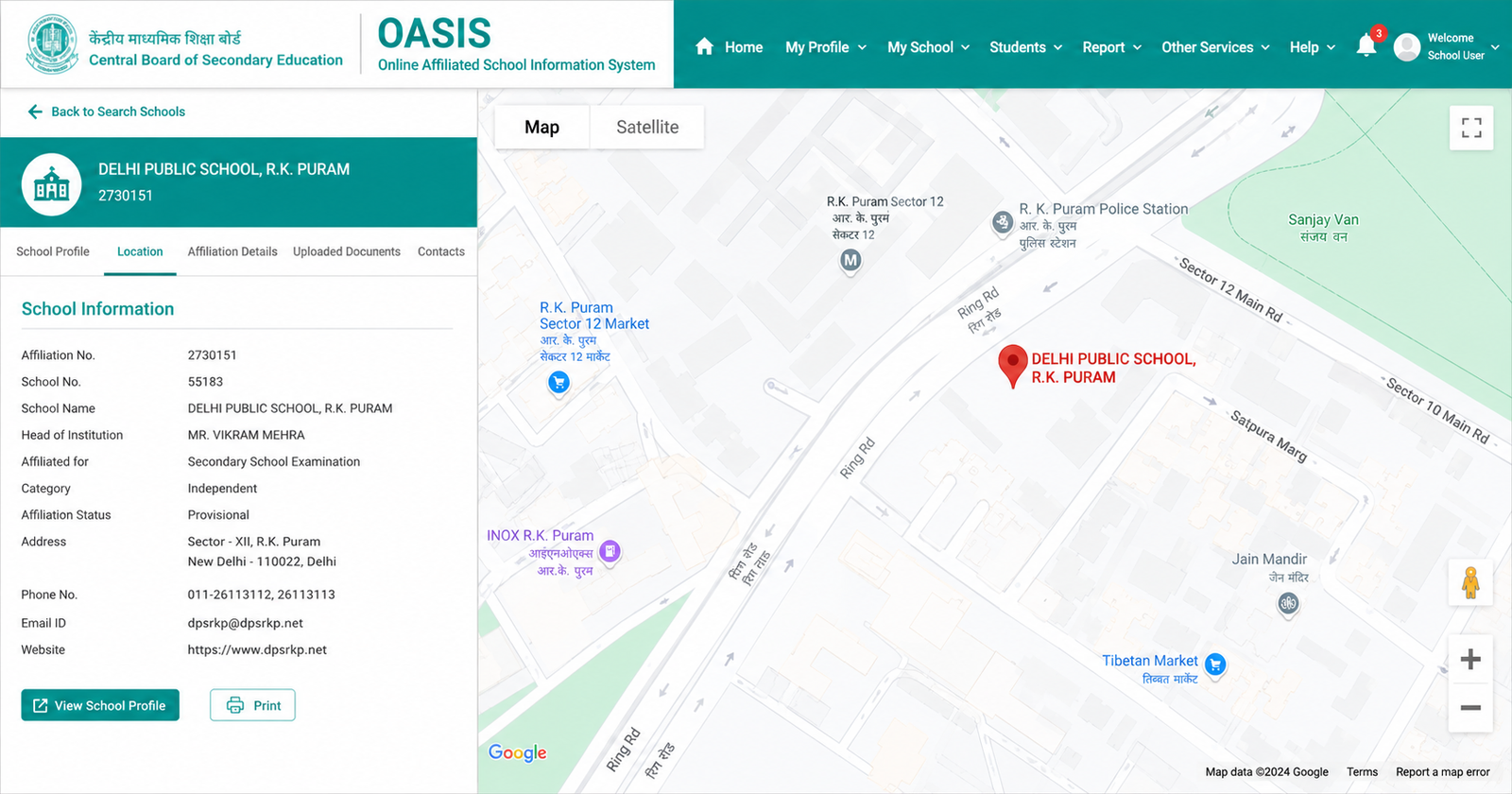
Step 8 — Upload to CBSE OASIS Portal
Go to saras.cbse.gov.in/oasis and log in with your school credentials
Navigate to the practical exam batch for which you are uploading
Click the photo upload option
Select the geotagged photo you downloaded
Submit and verify the upload confirmation
How to Verify the Photo is Properly Geotagged
Before uploading to CBSE, verify the GPS data is correctly embedded:
On Windows: Right-click the image file → Properties → Details tab → scroll down to GPS Latitude and GPS Longitude. If you see coordinate values, the photo is correctly geotagged.
On Mac: Open the image in Preview → Tools menu → Show Inspector → GPS tab. Your school's coordinates will appear.
Online: Upload the photo to exifdata.com and check the GPS section of the EXIF data.
Common Problems and Solutions
Problem: The photo is larger than 2 MB after geotagging Solution: Compress the photo at tinyjpg.com or ilovejpg.com after downloading. This reduces file size without removing GPS data.
Problem: The OASIS portal says the photo location is wrong Solution: Make sure the GPS coordinates you entered match your school's actual address. Use Google Maps to find the exact coordinates by long-pressing your school building.
Problem: The photo shows the wrong date Solution: Before clicking download, update the Date For Image field to the correct exam date and time.
Problem: The portal rejects the file format Solution: Ensure the file is saved as JPG. The EDVIDA tool exports as JPEG by default, so this should not be an issue.
Problem: iPhone HEIC photos are not uploading Solution: The EDVIDA tool automatically converts HEIC photos to JPEG during geotagging, so your downloaded file will be a valid JPG.
Frequently Asked Questions
Does geotagging change the image quality? No. Only invisible EXIF metadata is modified. The photo itself — pixels, colours, resolution — remains completely unchanged.
Can I use this tool on my phone? Yes. The tool works on Android and iPhone browsers. No app installation is required.
Is the tool free? Yes, completely free. No signup, no payment, no watermark.
Does my photo get uploaded to a server? No. All processing happens entirely in your browser. Your photo never leaves your device.
Can I geotag photos for multiple batches? Yes. Repeat the process for each batch photo. Each takes less than a minute.
What if my school's location isn't showing correctly on the map? Enter the latitude and longitude manually. Open Google Maps, long-press your school, and the exact coordinates appear at the top of the screen. Copy them directly into the tool.
Summary
Geotagging a CBSE practical exam photo is now a mandatory requirement, but it takes less than 2 minutes using the free EDVIDA geotag tool. No app needed, no login, and your photos never leave your device.
Add GPS Location to Your CBSE Photo Now →
If you found this guide helpful, share it with other teachers and school coordinators who may need it during the practical exam season.

Deepak Garg
Enthusiast