How to Geotag Photos for Google My Business & Boost Local SEO (2026)
Did you know geotagging your photos before uploading them to Google My Business can strengthen your local SEO? This guide explains exactly how to do it — free, in under 2 minutes, with no technical skills required.
If you run a local business in India and you are not geotagging your photos before uploading them to Google My Business (now called Google Business Profile), you are missing a simple and free way to strengthen your local search presence.
This guide explains what geotagged photos are, why they matter for local SEO, and exactly how to geotag your business photos in under 2 minutes using a free browser-based tool — no app, no signup required.
What is a Geotagged Photo?
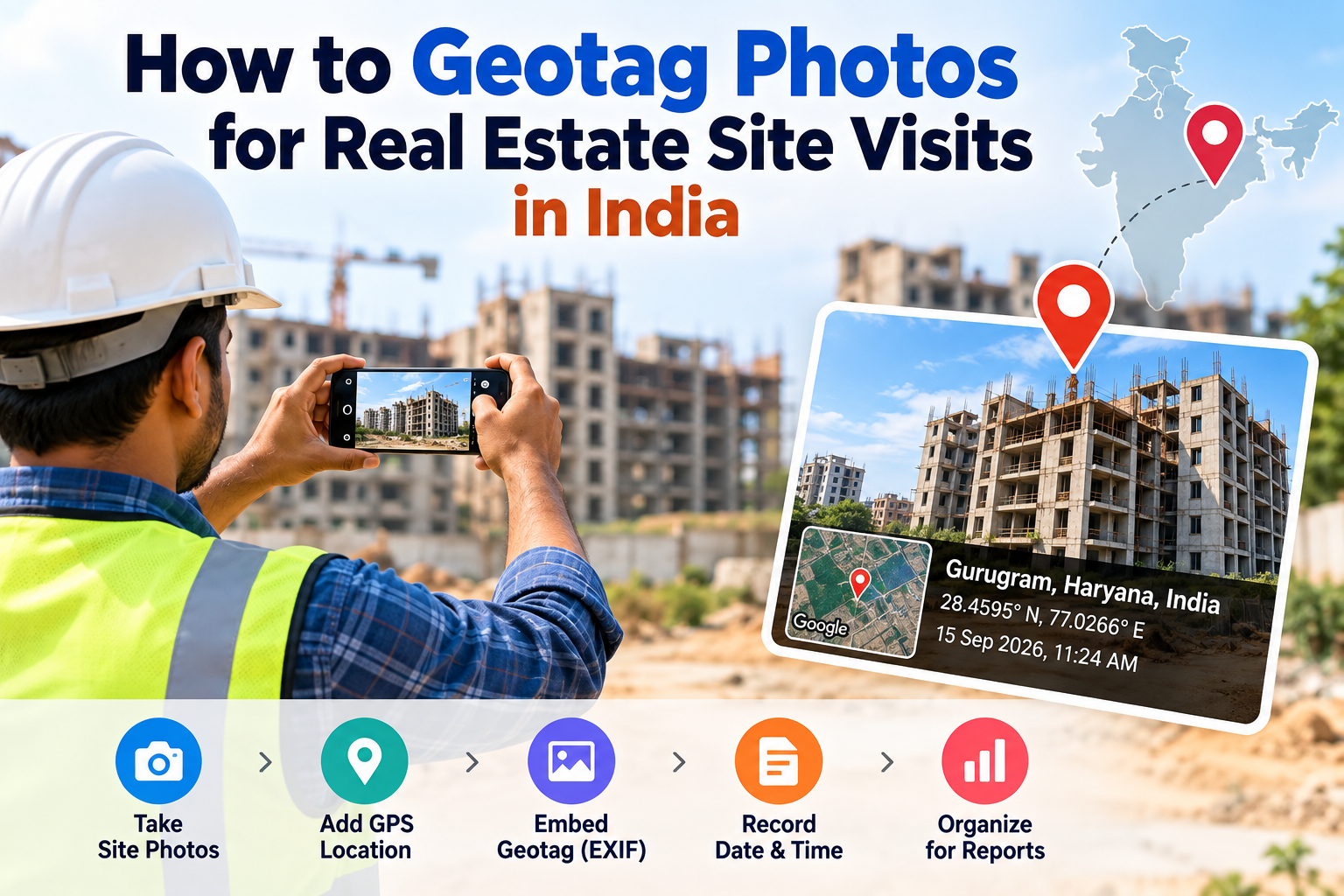
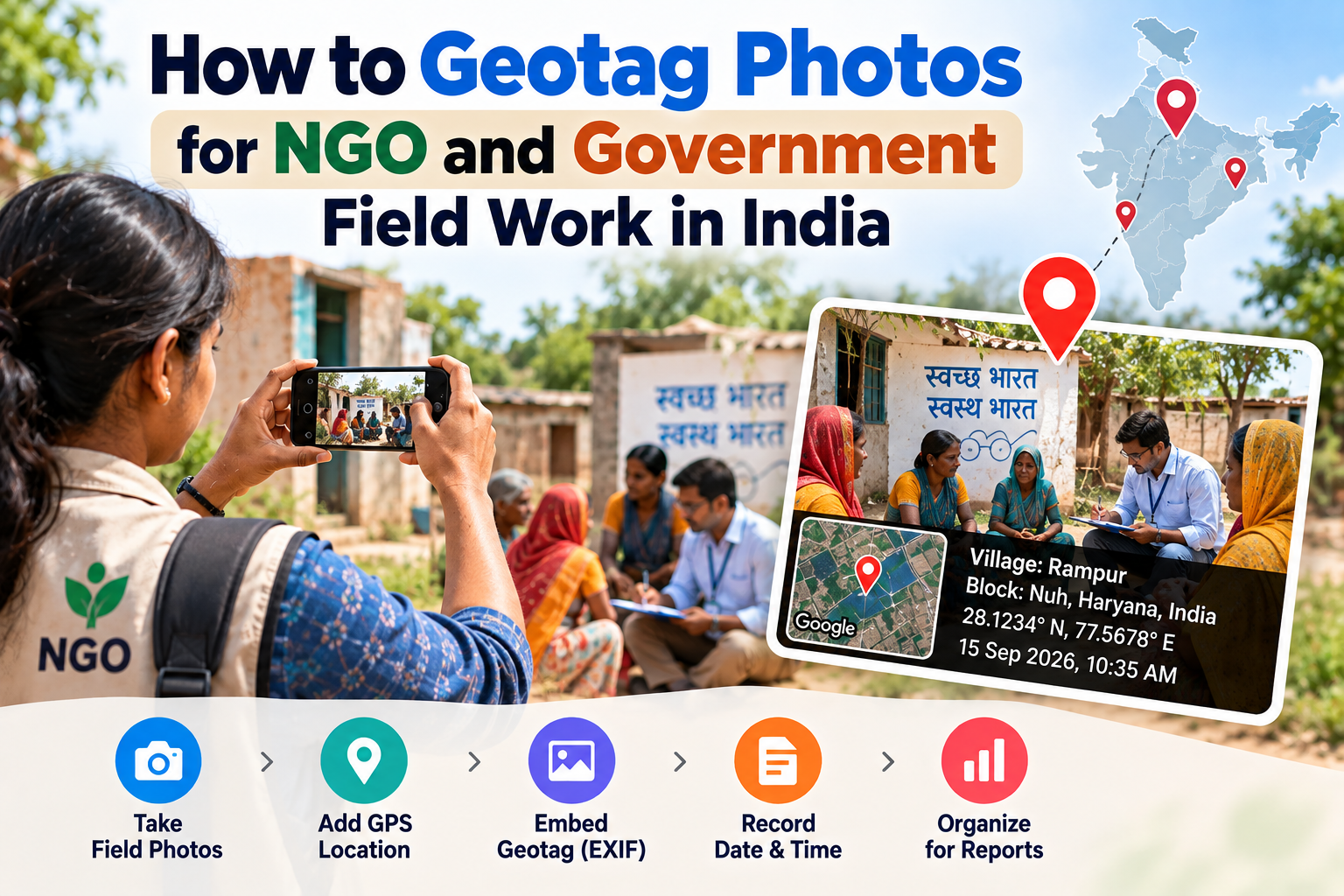
A geotagged photo is an image file that contains GPS location data — specifically latitude and longitude — embedded invisibly in its EXIF metadata. You cannot see this data by looking at the photo, but Google can read it when you upload the image.
When you take a photo on your smartphone with Location Services enabled, the camera automatically adds your GPS coordinates to the photo file. However, if Location Services was turned off, if you are using a DSLR camera, or if you are using stock product photos, your images have no location data at all.
Why Geotag Photos for Google My Business?
Google Business Profile allows you to upload photos of your storefront, products, team, and interior. When Google processes these photos, it reads the EXIF metadata — including any GPS coordinates embedded in the file.
Photos with GPS coordinates that match your business location give Google additional location signals confirming that your business genuinely operates at the address you have listed. This can:
Strengthen Google's confidence in your business location
Support your ranking in the local "3-pack" on Google Search
Improve your visibility in Google Maps searches for nearby customers
Reinforce relevance for "near me" search queries
Important clarification: Geotagged photos are a supporting signal, not a guaranteed ranking factor on their own. Google's local ranking algorithm considers many factors including reviews, NAP consistency, backlinks, and on-page SEO. However, geotagging photos is free, takes under 2 minutes, and requires zero technical skills — making it one of the easiest local SEO improvements you can make today.
Which Photos Should You Geotag?
Geotag all photos you intend to upload to your Google Business Profile:
Exterior photos — your storefront, signboard, building entrance
Interior photos — your reception, showroom, workspace, seating area
Product photos — items you stock or sell, if taken at your location
Team photos — staff photos taken at your business premises
Service photos — work-in-progress photos from your actual location
Do not geotag photos taken elsewhere (such as stock images or photos from a manufacturer). Only geotag photos that were genuinely taken at your business location.
Step-by-Step: How to Geotag Your Business Photos
Step 1 — Find your business's exact GPS coordinates
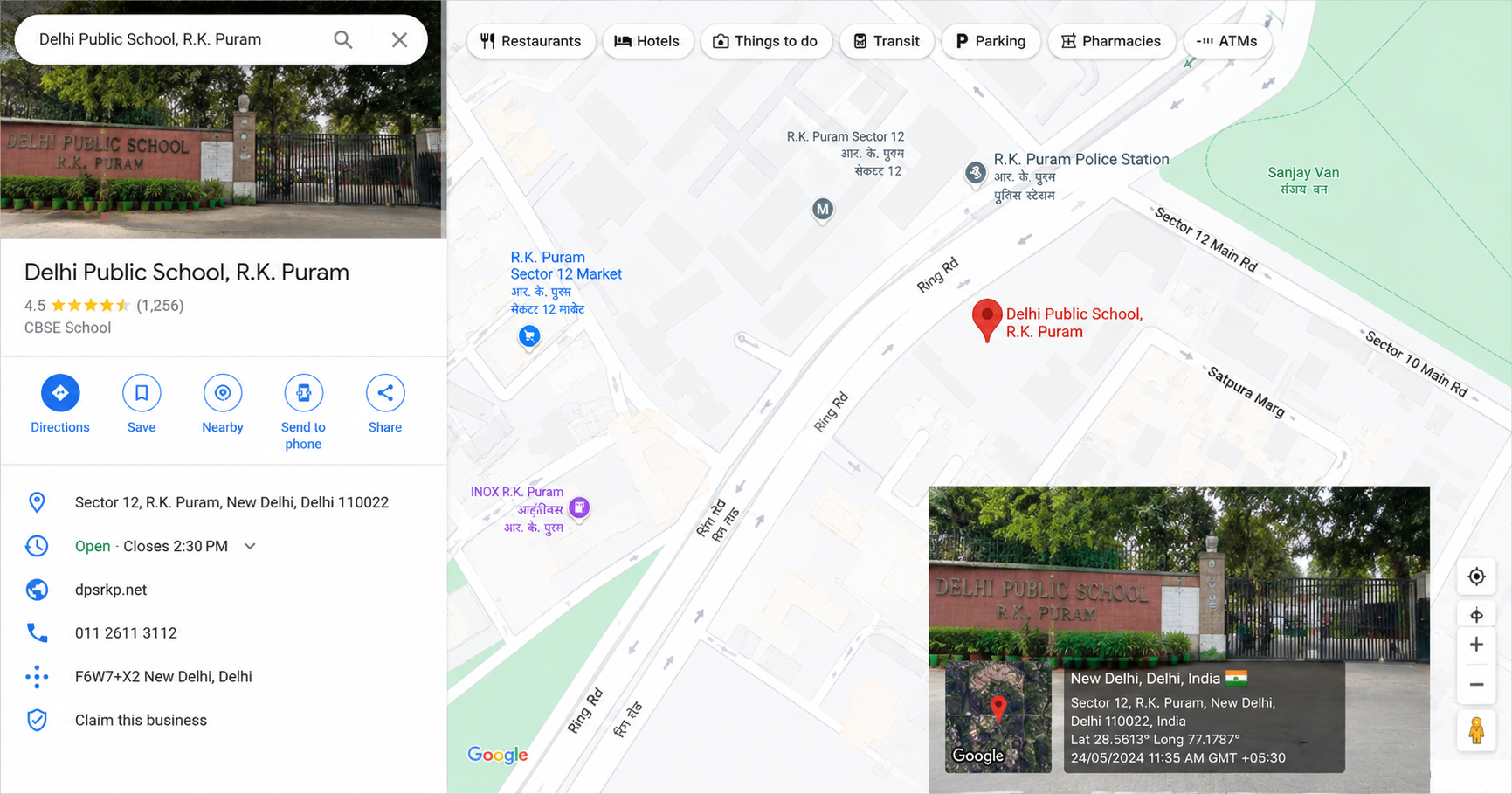
Open Google Maps on your phone or computer. Search for your business name or address. Once the map shows your location:
On mobile: long-press your business location on the map
On desktop: right-click your business location on the map
The latitude and longitude will appear at the top of the screen (mobile) or in the right-click menu (desktop)
Write down both values. Example: Latitude 28.6139, Longitude 77.2090
Step 2 — Open the EDVIDA Geotag Tool
Go to edvida.in/image-geo-tagging in your browser. The tool is completely free — no login, no signup, no watermark. It works on mobile and desktop.
Step 3 — Upload your business photo
Click Upload Image and select the photo you want to geotag. The tool accepts JPG, PNG, HEIC, and WEBP files up to 5 MB.
Step 4 — Set your business location
Click on your business location on the interactive map, or enter the latitude and longitude you found in Step 1 directly into the Latitude and Longitude fields. The map pin will move to your exact location.
Step 5 — Download your geotagged photo
Click Add GPS Location to Photo Now. Your photo will download automatically with your business's GPS coordinates embedded in the EXIF metadata. The image quality is completely unchanged.
Step 6 — Upload to Google Business Profile
Go to business.google.com and sign in
Select your business listing
Click Photos from the left menu
Click Add Photos and upload your geotagged images
Choose the appropriate category (Exterior, Interior, Product, etc.)
Repeat for each photo you want to upload. Aim to upload at least 10–15 high-quality geotagged photos to your Google Business Profile.
Additional Tips to Maximise the Impact
Upload photos consistently. Google rewards active Business Profiles. Upload at least 2–3 new photos per month rather than uploading 50 photos at once and then going quiet.
Use high-resolution photos. Google recommends a minimum of 720×720 pixels. Higher quality photos also perform better with customers browsing your listing.
Name your photo files with relevant keywords before uploading. Rename your files to something like restaurant-interior-connaught-place-delhi.jpg instead of IMG_0042.jpg. Google may read the filename as an additional signal.
Encourage customers to upload geotagged photos too. When customers visit and leave photos on your listing, those photos also carry GPS data from their phones. Positive customer photos strengthen your local presence.
Do not use stock photos. Google can detect stock images and they provide no local SEO benefit. Always use real photos taken at your actual business location.
Frequently Asked Questions
Does geotagging photos guarantee better Google Maps ranking? No tool or technique can guarantee ranking. Geotagged photos are one supporting signal among many. However, since it is free and takes under 2 minutes, it is worth doing for every photo you upload.
Can I geotag photos on my iPhone? Yes. The EDVIDA tool works in iPhone Safari. Simply go to edvida.in/image-geo-tagging, upload your photo, set the location, and download.
How many photos should I upload to Google Business Profile? Businesses with more than 100 photos receive significantly more views than those with fewer photos, according to Google's own data. Start with 10–15 geotagged photos and add more over time.
Will geotagging remove photo quality? No. Only invisible EXIF metadata is modified. Your photo's resolution, colours, and sharpness remain completely unchanged.
My business has multiple locations — do I geotag with different coordinates for each? Yes. Upload photos geotagged with each location's specific GPS coordinates to the corresponding Business Profile listing. Each location should have its own set of geotagged photos.
Geotagging your business photos is one of the fastest, free local SEO improvements available. It takes less than 2 minutes per photo and can support your visibility in Google Maps and local search results.

Deepak Garg
Enthusiast