How to Compress Geotagged Photo Under 2MB for CBSE Portal (2026)
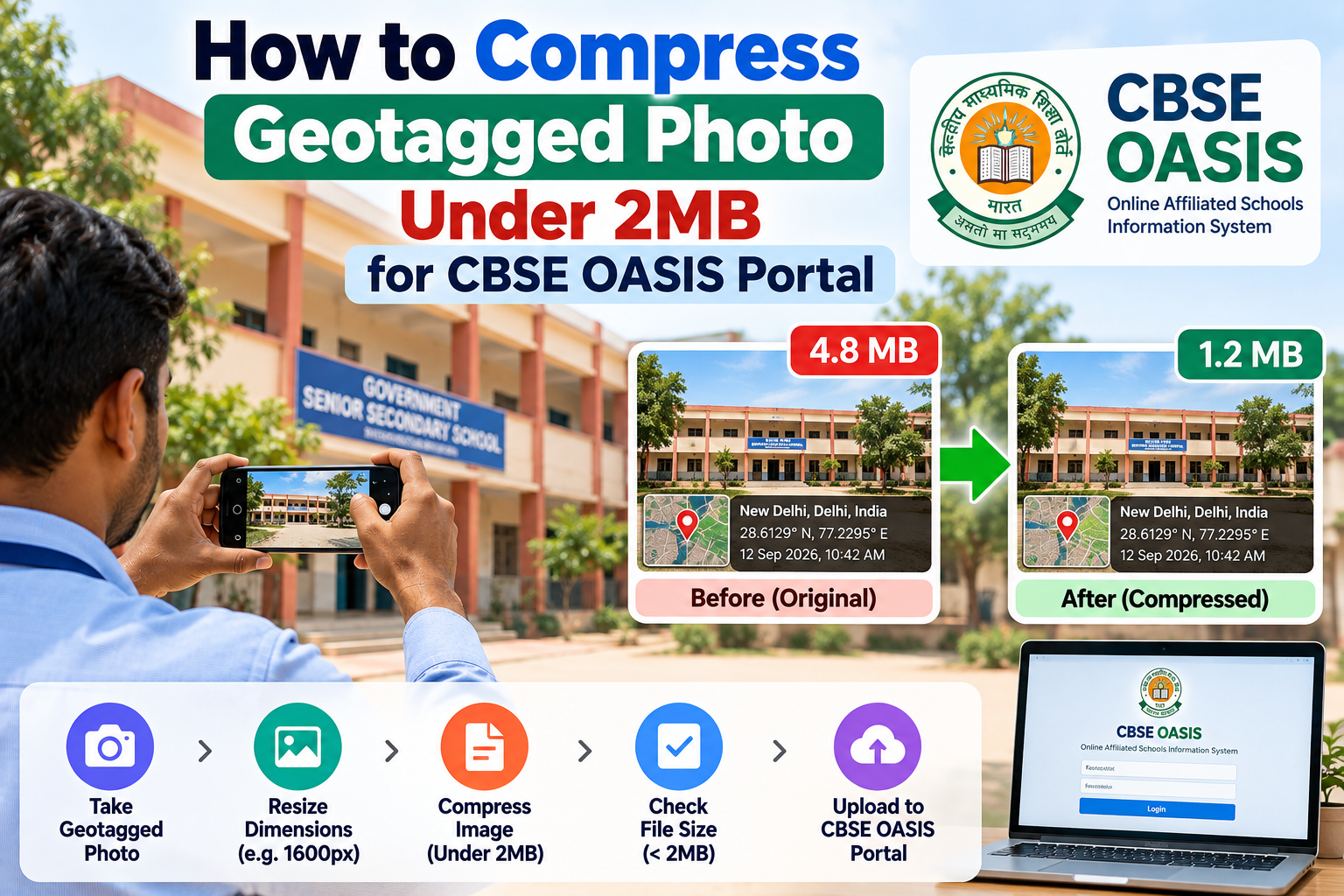
CBSE requires geotagged photos under 2MB for the OASIS portal. But compressing a photo often removes GPS data. This guide shows you exactly how to geotag AND compress your CBSE practical exam photo correctly — keeping the GPS intact.
Every January and February, thousands of school teachers and coordinators hit the same wall: they successfully geotag their CBSE practical exam group photo, try to upload it to the CBSE SARAS OASIS portal — and get rejected because the file is too large.
CBSE requires geotagged photos to be under 2 MB and in JPG/JPEG format. A typical group photograph taken on a modern smartphone is 3–8 MB. This guide shows you exactly how to get your geotagged CBSE photo under 2 MB without losing the GPS data — using free tools that take less than 3 minutes total.
The Right Order of Steps (Important)
Most people make one critical mistake: they compress the photo first, then try to geotag it — and find that some compression tools strip EXIF metadata (including GPS data) in the process.
The correct order is:
Geotag first → add GPS coordinates using EDVIDA's free tool
Compress second → reduce the file size using TinyJPG or iLoveJPG
Verify → confirm the GPS data survived compression
Upload → submit to CBSE OASIS portal
Follow this order every time. Do not reverse steps 1 and 2.
Step 1 — Geotag Your Photo First
Before compressing anything, add GPS coordinates to your group photo using the EDVIDA free geotag tool.
Go to edvida.in/image-geo-tagging — no login needed
Upload your group photograph
Click your school's location on the map, or enter the latitude and longitude manually
Set the date and time to match the practical exam
Click Add GPS Location to Photo Now
Save the downloaded geotagged photo
At this point you have a geotagged photo. Now check its size.
Step 2 — Check the File Size
Right-click the downloaded photo → Properties (Windows) or Get Info (Mac) to see the file size.
Under 2 MB: Upload directly to CBSE OASIS. You are done.
Over 2 MB: Proceed to Step 3 to compress it.
Step 3 — Compress the Photo (Without Losing GPS Data)
Use one of these tools — they are EXIF-safe, meaning they preserve GPS metadata while reducing file size:
Option A — TinyJPG (Recommended)
Go to tinyjpg.com
Drag and drop your geotagged photo
Wait for compression (usually 5–10 seconds)
Click the download link
Check the file size — typically reduced by 60–80% with minimal quality loss
TinyJPG is the most reliable option. It preserves EXIF metadata including GPS data by default.
Option B — iLoveJPG
Upload your geotagged photo
Choose the compression level (start with Medium)
Download the compressed file
Verify file size
Option C — Squoosh (Google's Tool — Browser Based)
Go to squoosh.app
Upload your geotagged photo
Set the quality slider (70–80% is usually a good balance)
Make sure "Preserve EXIF metadata" is checked in the settings
Download
Note: Always verify EXIF is preserved when using Squoosh — check the setting explicitly.
Step 4 — Verify the GPS Data Survived Compression
Before uploading to CBSE, verify the GPS coordinates are still in the compressed file.
On Windows: Right-click the compressed photo → Properties → Details tab → scroll to GPS Latitude and GPS Longitude. If you see coordinate values, the GPS data is intact.
On Mac: Open in Preview → Tools → Show Inspector → GPS tab.
Online verification: Go to exifdata.com, upload the compressed photo, and check the GPS fields.
If the GPS data is missing, repeat Step 1 (geotag the original photo again) and try a different compression tool.
What If the Photo Is Still Over 2 MB After Compression?
If your photo is still over 2 MB after one round of compression, try these options:
Compress again: TinyJPG can be applied multiple times. Run the photo through it twice to achieve greater compression.
Reduce resolution before compressing: Use your phone's built-in photo editor to resize the image to 1920×1080 or smaller, then compress. Group photos do not need to be ultra-high-resolution for CBSE submission.
Use a lower quality setting: In iLoveJPG or Squoosh, lower the quality setting to 60%. For CBSE documentation purposes, lower quality is acceptable as long as all faces are clearly visible.
Retake the photo at a lower resolution: If you have not yet taken the group photo, set your phone camera to a lower resolution setting (2 MP or 4 MP is sufficient for CBSE documentation).
Target File Sizes for CBSE Submission
Photo Resolution | Typical Raw Size | After TinyJPG | Suitable for CBSE? |
|---|---|---|---|
12 MP (4K phone) | 4–8 MB | 1–2.5 MB | Usually yes |
8 MP standard | 2–4 MB | 0.6–1.2 MB | Yes |
5 MP | 1–2 MB | 0.4–0.8 MB | Yes |
2 MP | Under 1 MB | Under 0.5 MB | Yes |
For most modern smartphones, shooting at 8 MP or lower and then running through TinyJPG will consistently produce files under 2 MB.
Frequently Asked Questions
Does compressing a photo remove the GPS coordinates? It depends on the compression tool. TinyJPG and iLoveJPG preserve EXIF metadata including GPS by default. Always verify after compression using the methods in Step 4.
Can I compress the photo first and then geotag it? Technically yes, but geotag first to be safe. Some compression tools strip EXIF data, which would remove the GPS you just added. Geotagging first and compressing second is the recommended order.
What is the maximum file size CBSE accepts? CBSE requires photos under 2 MB in JPG or JPEG format. This requirement has been consistent since the OASIS portal was introduced.
I compressed my photo but CBSE still says it's too large. What do I do? Try compressing again, or reduce the photo resolution first. If the file is 1.9 MB and being rejected, there may be a portal-side issue — try refreshing and uploading again or contact the CBSE technical helpline at techhelp.cbse@nic.in.
Does the geotagging tool add to the file size? Only very slightly — GPS EXIF data is a few kilobytes. A geotagged photo is essentially the same size as the original.
CBSE's under-2-MB requirement catches many schools off guard during the practical exam season. The solution is straightforward: geotag first, compress second, verify the GPS survived. The entire process takes under 3 minutes with the free tools above.

Deepak Garg
Enthusiast